
Bring Cimmarians Together
Planning a tournament, a larger game night, a VRChat meetup or an IRL gathering? Community Events give your plans a date, a place, RSVPs and room to organise.
Community Events are created by members for members. Unless an event is specifically marked as an official Cimmarian event, it is independently hosted by the member who created it.
Should I Use Community Events or LFG?
- Use LFG for a quick game, chat or hangout happening now or within the coming week. Creating and joining an LFG is 100% free.
- Use Community Events for larger gatherings, IRL meetups or plans further ahead that need more organisation. Hosting through this system requires Supporter membership or higher.
An LFG scheduled at least three hours ahead can also have a bonus Discord event. That remains part of the free LFG system; it does not require Community Events hosting access. Read the illustrated LFG guide for game roles, group chats, voice channels and the LFG joining process.
Ready to Join or Host?
View upcoming Community Events
Browse the calendar and find an activity that interests you.
Create a Community Event
Sign in with the Discord account you use in Cimmarian.
Who Can Join or Create an Event?
Community Event creation is available to Cimmarians with an active Supporter membership or higher and the corresponding Discord access.
All Cimmarians can discover and join events they are eligible to attend. Read each event’s description: its location, available spaces, required roles and any other entry requirements still apply.
What Can I Organise?
- Gaming: planned community game nights, raids, organised lobbies and tournaments.
- VR & VRChat: world tours, club nights, exploration and community meetups.
- Watch parties: community viewing nights, showcases and game reveals.
- Creative activities: art sessions, music discussions, screenshot contests and collaborative projects.
- Social gatherings: themed nights, community discussions and organised hangouts.
- IRL activities: public meetups, conventions and arcade trips where appropriate.
You do not need to plan a huge production. Choose the system that fits how much coordination your activity needs. For “Anyone want to play tonight?”, start with free LFG.
How Do I Join a Community Event?
- Open the event and read its description, time, location and entry requirements.
- Use an attendance option on its Sesh signup message to RSVP.
- Check the event for updates and set a reminder if you want one.
- If your plans change, update your RSVP so the host knows who is coming.
For Community Events, clicking Interested in Discord’s Events list alone does not register your Sesh RSVP. Follow the signup link in the event description and respond there. This differs from the free LFG system’s Interested-to-join feature.
How Do I Create My First Event?
Start with a title, date, time, location and useful description. The default settings work for many events.
- Open Create a Community Event and sign in with your Discord account.
- Give the event a clear title that explains the activity.
- Choose the date, start time and duration. Check the timezone shown in the form before publishing.
- Describe the plan, who it is for and what attendees need.
- Choose the location. For Discord activities, use the appropriate Cimmarian channel. If a game has no dedicated area, use a suitable Just Chatting channel. Voice activities can also use the dedicated voice channel under the Events category.
- Review the details, then press Create Event.
Discord timestamps normally display in each viewer’s local time. If you also type a time in the description, include the date and timezone. Use Eastern Time when you mean the local time in Ontario throughout the year; EST and EDT differ with daylight saving time.
What Should My Description Include?
Tell people what they are joining, where to meet, how long it will run and what they need. Include any capacity or skill requirements.
HELLDIVERS 2 COMMUNITY NIGHT
We’re organising a community game night with several squads. New and experienced players are welcome.
When: See the event’s date and start time.
Length: Around two hours.
Meet: The voice channel listed in the event.
Bring: Helldivers 2 and access to Discord voice.
Plan: Meet first, form squads and choose missions together.RSVP on the signup message so the host can plan the squads.
What Are the Community Event Rules?
- Keep it community-focused. Events should bring Cimmarians together. Do not create them primarily to advertise Twitch channels, social accounts, other Discord servers, businesses, products or unrelated external communities.
- Keep it appropriate. Cimmarian does not support NSFW Community Events. Activities primarily involving adult or explicit material must not be hosted through this system.
- Explain the activity. Clearly state the expectations, location and anything attendees need.
- Follow Cimmarian’s rules. Hosting or attending an event does not bypass the community rules. Serious or intentional misuse can result in moderation action or loss of event privileges.
- Take responsibility as the host. Manage the activity, treat attendees appropriately and update changed or cancelled plans promptly.
For IRL events, choose appropriate public meeting places and protect personal information. Never publish someone’s private address or other personal details without permission.
How Do I Change or Cancel My Event?
Open the event’s gear button and use its edit or delete option, or manage it through the calendar. These controls are available to the event creator and authorised managers. Update attendees promptly when the plan changes.
What Do the Optional Settings Do?
Use the defaults until your event needs something more specific. Available options depend on Cimmarian’s configuration and your permissions.
RSVP
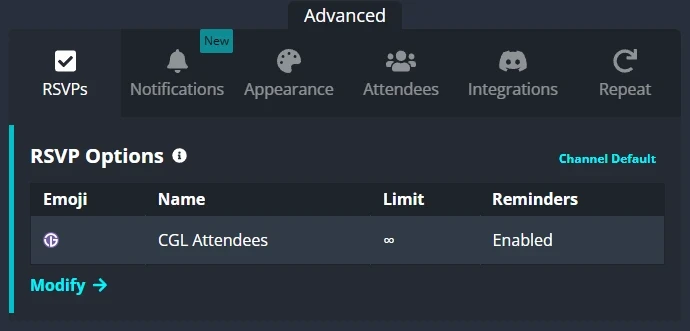
Choose how people respond. Default attendance options suit most events; a tournament or organised team activity may benefit from custom options.
Reminders & Notifications
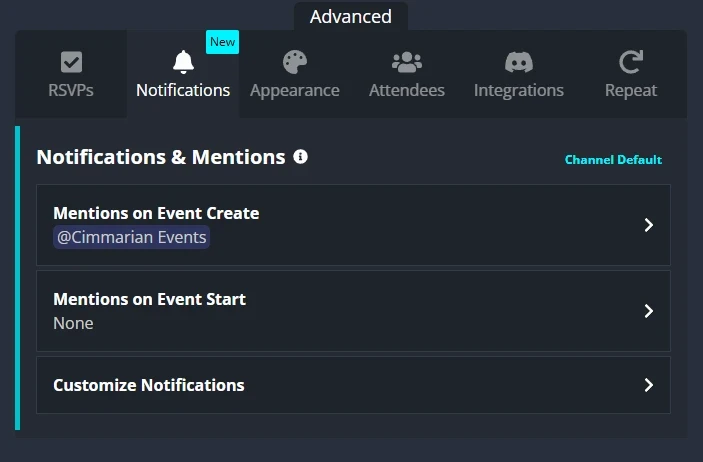
Keep the defaults unless your event needs different notices. Avoid unnecessary pings. Attendees who want personal reminders should check their Sesh confirmation message and allow its DMs.
Appearance

Choose artwork that represents the activity. Streamer banners, advertisements and unrelated promotional graphics do not belong on Community Events.
Attendees
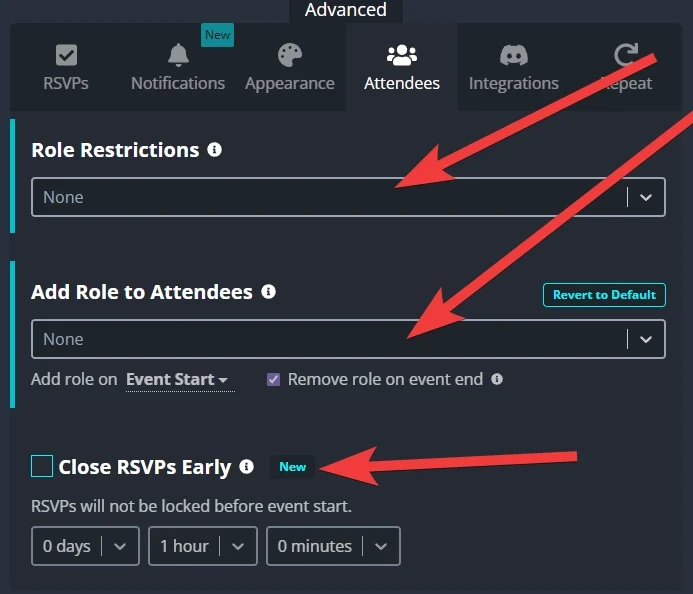
Use role restrictions, attendance limits or early RSVP closing when your event needs them. Check these carefully: restrictions can prevent otherwise interested Cimmarians from signing up.
Discord Integration
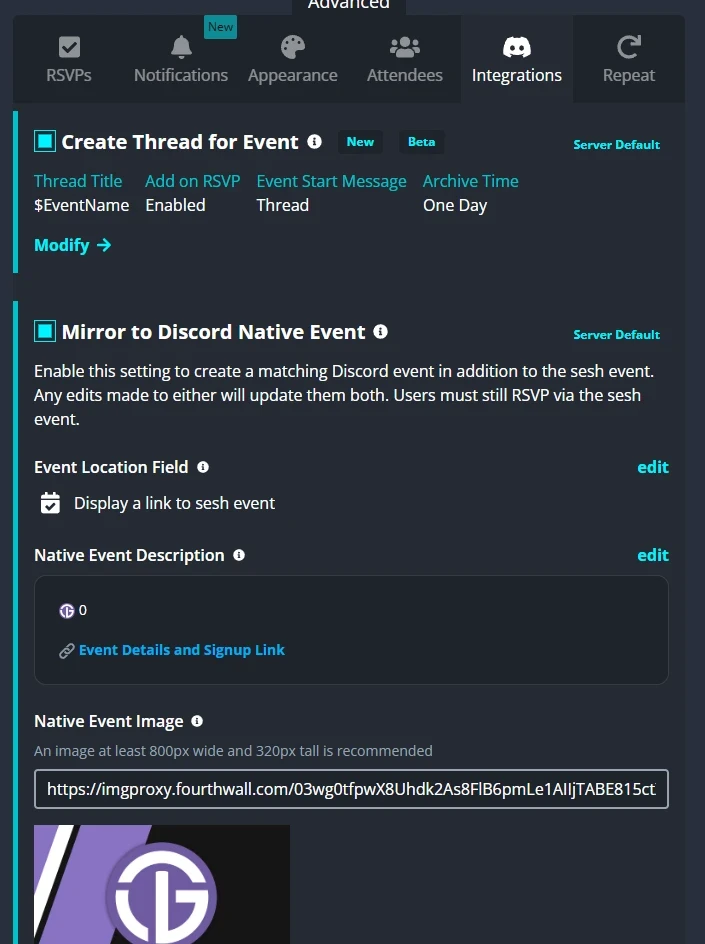
Our defaults let Community Events appear in Discord’s Events list. Most hosts can leave them as configured. Attendees should still RSVP through the linked Sesh signup message.
Repeat Events

Use Repeat for a regular weekly or monthly activity. Check its repeat timezone and schedule; leave Repeat disabled for a one-off event.
Need Help?
If you cannot create an event, check that you are signed in with the correct Discord account and have your eligible membership role. For a missing role, an unclear setting or a question about whether your event is appropriate, open a support ticket in the Cimmarian Discord.
Find your next Community Event · Find a quick group with free LFG · Member Help & FAQ
FOR CIMMARIAN!