
Looking for a co-op partner, a squad for tonight, or someone to talk to? Cimmarian's LFG helps you find other Cimmarians who want to spend time together.
LFG means “Looking for Group.” It's intended for quick groups happening now or within the coming week. Join a session, start your own, or let others know you're available.
Is Cimmarian's LFG free?
Yes. Cimmarian's LFG is 100% free. You do not need a paid membership to create or join an LFG.
For gaming LFGs, grab the appropriate game genre role first. You need it to receive pings, send pings, join groups and create groups. Just Chatting is currently the only LFG that does not require a game or genre role.
How do I get my game genre roles?
- Open the Cimmarian Discord. If you haven't joined yet, visit Join the Cimmarian Discord
- Select Channels & Roles near the top of the community's channel list.
- Open the Customise tab.
- Find “Which game genres do you play?”
- Select the genres you enjoy. You can choose more than one.
- Open the relevant genre's LFG channel, such as shooter-games-lfg or horror-games-lfg.
Choose the genres you actually want to join in with. If you cannot find the right role or channel, ask the team for help.
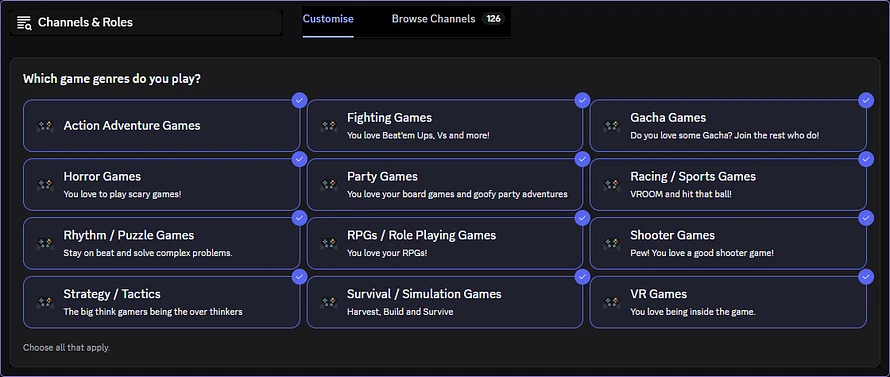
Open Channels & Roles, choose Customise, then select your game genres.
What do the main buttons do?
- Create Group: Start a session for others to join.
- Join: Join an existing session using the button on its group card.
- Find Group: Post that you're looking so other Cimmarians can find and invite you.
How do I create my first LFG?
- Open the relevant LFG channel and find the Cimmarian LFG message.
- Press Create Group, then choose your game from Select a game.
- Choose Playing now, or Playing later if you're planning ahead.
- Choose your group size. For example, Squad (4 People) makes a four-person group.
- Use More filters for any additional preferences you need.
- We recommend selecting Create a public group chat so you can coordinate with people who join. You can also choose to use voice chat without creating a public group chat.
- Press Add a note to explain your session.
- Review the preview and press Create Group.
A helpful note could be:
“Casual Darktide runs tonight. New players welcome! Looking for three more, using Discord voice.”
Mention the atmosphere, game mode and anything people need before joining. The settings offered can vary by game.
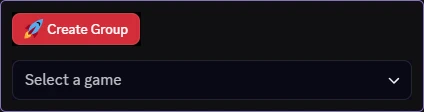
Press Create Group, then select your game.
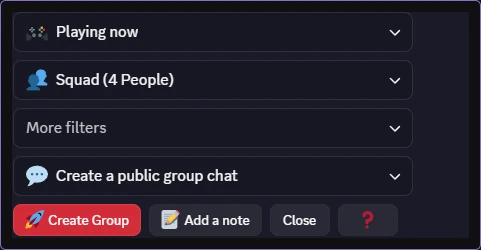
Choose your timing, group size and preferences. A public group chat is recommended.
Why should I create a public group chat?
A public group chat gives your group a place to talk before entering voice. People who join can introduce themselves, arrange the session and check its details.
It also gives you access to the group's controls while you wait for players. You can adjust your search, invite friends or start the voice channel whenever you're ready.
You don't need to wait for a full squad before opening voice.
Use the public group chat to coordinate and manage your LFG.
How do I move my group into voice chat?
- Open your public group chat and find its group control panel.
- Press Create Voice Channel.
- Read the confirmation. Group members will be pinged to move, and the public group chat thread will be archived.
- Press Create Voice Channel again to confirm.
- Use the Join Voice button or the voice-channel link in the next message.
This starts the live voice part of your LFG. You can hang out or play while waiting for more people to join.
Once the group moves, its controls are available in the voice channel's text chat.

Confirm the move: members are notified and the public thread is archived.

Select Join Voice, then use the controls link for the voice channel’s text chat.
Where do I find my settings after joining voice?
Open the voice channel's text chat using the “Find Controls in the chat of Voice Channel” link in the message announcing the move.
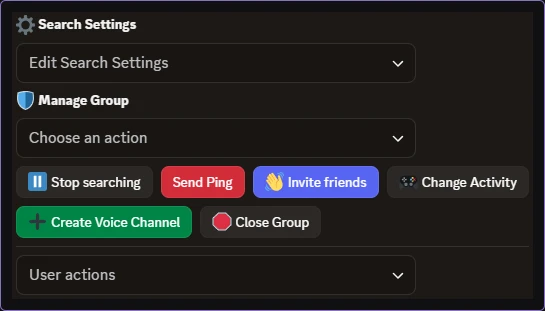
Look for the panel headed “Searching for groupmates…” The available controls include:
- Search Settings: Adjust your group's search preferences.
- Manage Group: Manage participants, including removing or banning disruptive players from your group where available. This does not ban them from the Cimmarian server.
- Change Activity: Change the game your group is playing.
- Send Ping: Notify eligible players when this option is available.
- Invite friends: Bring other people into your session.
- Stop searching: Pause the search when you aren't looking for more players.
- Close Group: Finish the group when you're done.
Use moderation controls responsibly. Report serious issues to Cimmarian's team.
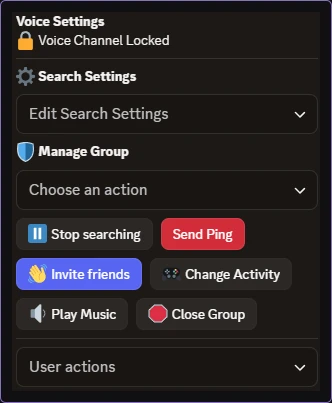
Manage your LFG from the voice channel’s text chat.
How do I join someone else's LFG?
- Find a group card in the relevant LFG channel.
- Check its game, start time, preferences and available places. A count such as 1/4 means one of four places is occupied.
- Press Join and follow the prompts to reach its group chat or voice channel.
You need the appropriate genre role for gaming LFGs. If a group is full or finished, try another session or create your own.
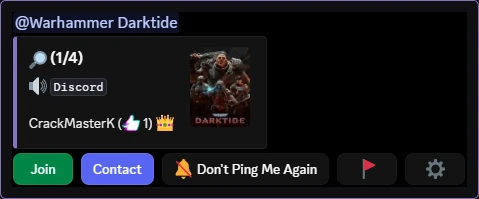
Check the available places, then press Join.
What if I want to play without organising a group?
Use Find Group to let other Cimmarians know you're open to play:
- Press Find Group beneath the Cimmarian LFG message, then select your game.
- Choose Playing now or a time later when you'll be available.
- Use More filters and Add a note if you want to explain your preferences.
- Review the preview, then press Find Group to post.
Your public “Looking for a group” card lets other Cimmarians see your availability. They can press Group Up to team up with you or Contact to get in touch.
If you choose a later time, the confirmation shows when you're available. Until then, you'll hear about groups starting around that time.
When your plans change or you're no longer looking, press Stop Looking for Group in your confirmation message.
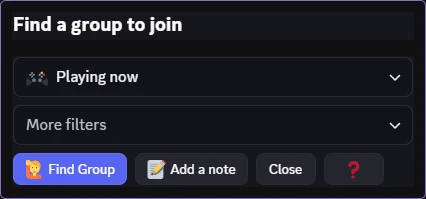
Choose your availability and press Find Group.
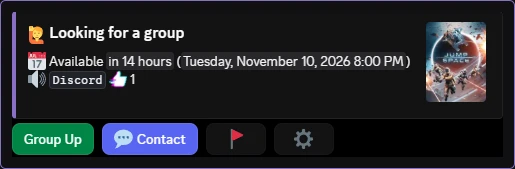
Your public listing lets other Cimmarians use Group Up or Contact.
In your private confirmation message, use Stop Looking for Group when finished.
Can I use LFG just to chat or hang out?
Absolutely. Choose Just Chatting when you want company without organising a particular game.
Start a conversation, meet other Cimmarians, or hang out while everyone does their own thing. Add a short note so people know what to expect.
Just Chatting currently does not require any game or genre roles.
What does the red ❗ number mean?
The number beside the red ❗ shows active players currently eligible for an LFG ping for that game.
For example, “❗13 ping ready” means 13 eligible players can be notified about your session. It does not mean 13 people have joined or that all 13 will be available.
The count changes with player activity and notification eligibility. It is separate from the “playing now” count. Use Send Ping in your group controls when available, and give people time to respond.
Can I plan an LFG for later?
Yes. Select Playing later during setup, choose your date and time, and check the timezone before creating the group.
In Cimmarian, scheduling at least three hours ahead also gives your LFG a bonus Discord event.
Other members can select Interested on that event to join the LFG automatically while spaces remain and the group is available to join. Gaming LFGs require the appropriate genre role; Just Chatting does not.
When should I use Community Events instead?
Use LFG for a quick game, chat or hangout happening now or within the coming week.
Choose Community Events for larger gatherings, IRL meetups, or activities planned further ahead that need more organisation. A tournament, larger community game night or planned day out may fit better there.
Hosting through Community Events requires a Supporter membership or higher. Joining depends on the event's access requirements. Creating and joining an LFG remains free.
An LFG's bonus Discord event is still part of the free LFG system; it is separate from Community Events hosting.
Read our Community Events guide:
Community Events: How to Join & Host
Why can't I access an LFG or receive pings?
Check your genre selections in Channels & Roles first. Just Chatting is the exception to the role requirement.
For missing pings, check your Discord notification settings and whether you have muted LFG notifications. Your role allows participation, but activity, session preferences and notification limits can affect which pings you receive.
If you still cannot view, create or join an LFG, open a support ticket. Include the channel, your selected genre role and any error message.
What makes a good LFG?
Be clear, welcoming and considerate. Say whether you're playing casually, competitively or welcoming beginners. Only join when you intend to participate.
Give people time to respond and avoid repeatedly creating posts for attention. If plans change, tell your group. Stop searching when you don't need more players and close the group when you're finished.
Cimmarian's community rules apply to every LFG.